Getting Started
This guide helps you launch Karcytics for the first time, create or open a project, and understand the key controls in the Project Hub.
Before you begin
If Karcytics is not installed yet, start with Installation.
Karcytics stores local app data in ~/.karcytics. This includes:
- installed plugins
- trusted developer keys
- logs
- recent project metadata
Launching Karcytics
- Open Karcytics from your operating system’s app launcher or the extracted install folder.
- On first launch, the app opens the Project Hub.
- The Hub is the main starting point for new projects, existing projects, plugin installation, and help.
[!NOTE] You can reopen the Hub from inside a workspace by choosing File → Home Screen or using the home button in the top toolbar.
The Project Hub
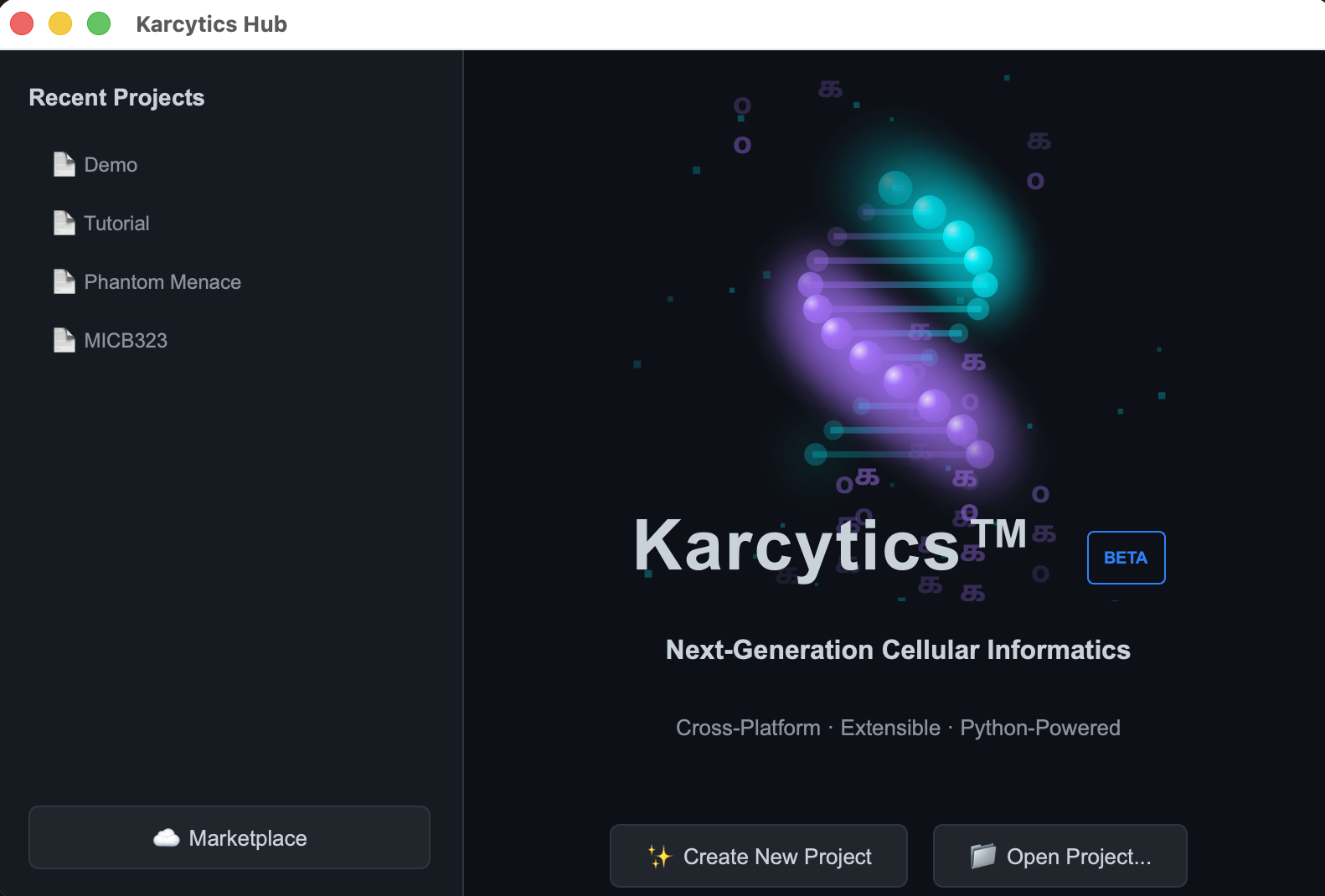
The Project Hub has a few core areas:
- Recent Projects — a list of the project folders you most recently opened
- Create New Project — starts a new saved workspace
- Open Project — opens an existing project folder
- Marketplace — installs and manages analysis modules
- Academy — launches the guided onboarding experience
flowchart TD
    A[Open Karcytics] --> B[Project Hub]
    B --> C[Open Existing Project]
    B --> D[Create New Project]
    B --> E[Install plugin]
    E --> F[Open workspace]
Creating a new project
- Click Create New Project.
- Enter a project name.
- Select a folder where the project should live.
- Confirm the project creation.
Karcytics saves every project as a folder containing:
project.karcytics— the main project state fileassets/— images and files managed by the projectworkflows/— saved workflow snapshots.karcytics.lock— temporary lock file while the project is open
[!WARNING] Do not open the same project in more than one Karcytics instance at once. This can lead to lock conflicts or data corruption.
Opening an existing project
- Click Open Project.
- Navigate to the project folder that contains
project.karcytics. - Select the folder and open it.
If another Karcytics instance is already using the project, the app will prevent a second open to avoid data corruption.
If Karcytics crashed and left a stale lock file, remove .karcytics.lock from the project folder before reopening—only after confirming no Karcytics instance is still using the project.
Navigating the Help Center
Karcytics includes a built-in Help Center for offline documentation.
- Press F1 from any workspace to open Help.
- Use Help → Karcytics Help Center in the app menu.
- Use Restart Onboarding Tour to replay the guided intro.
Using Cyto Academy
Use the Academy button in the home ribbon or workspace toolbar to launch Cyto’s guided startup lessons.
- The startup course introduces the Project Hub, project files, and modules.
- If a lesson requires a plugin, Cyto prompts you to install it from the Marketplace.
- Academy is a safe place to learn workflows without affecting your main project.
[!TIP] If you are new to Karcytics, start with the Academy tour before diving into a full analysis workflow.
What comes next?
Once your project is open:
- install the module(s) you need from the Marketplace,
- follow the Tutorial: First Analysis, and
- use the FAQ & Troubleshooting page if something feels off.