Plugin Store and Security
Karcytics keeps the core app lightweight and lets you install analysis tools as needed. The in-app Plugin Store handles discovery, updates, and trust checks so you can add modules without manually copying files into the app.
Why the Plugin Store matters
Karcytics separates the main application from analysis modules. That gives you:
- a smaller, more stable core app,
- a modular workflow where you only install what you need,
- safer plugin execution through trust checks and developer verification.
The Plugin Store is the place to manage all of this from a single interface.
What you will see in the Marketplace
The Plugin Store organizes modules into a few clear views:
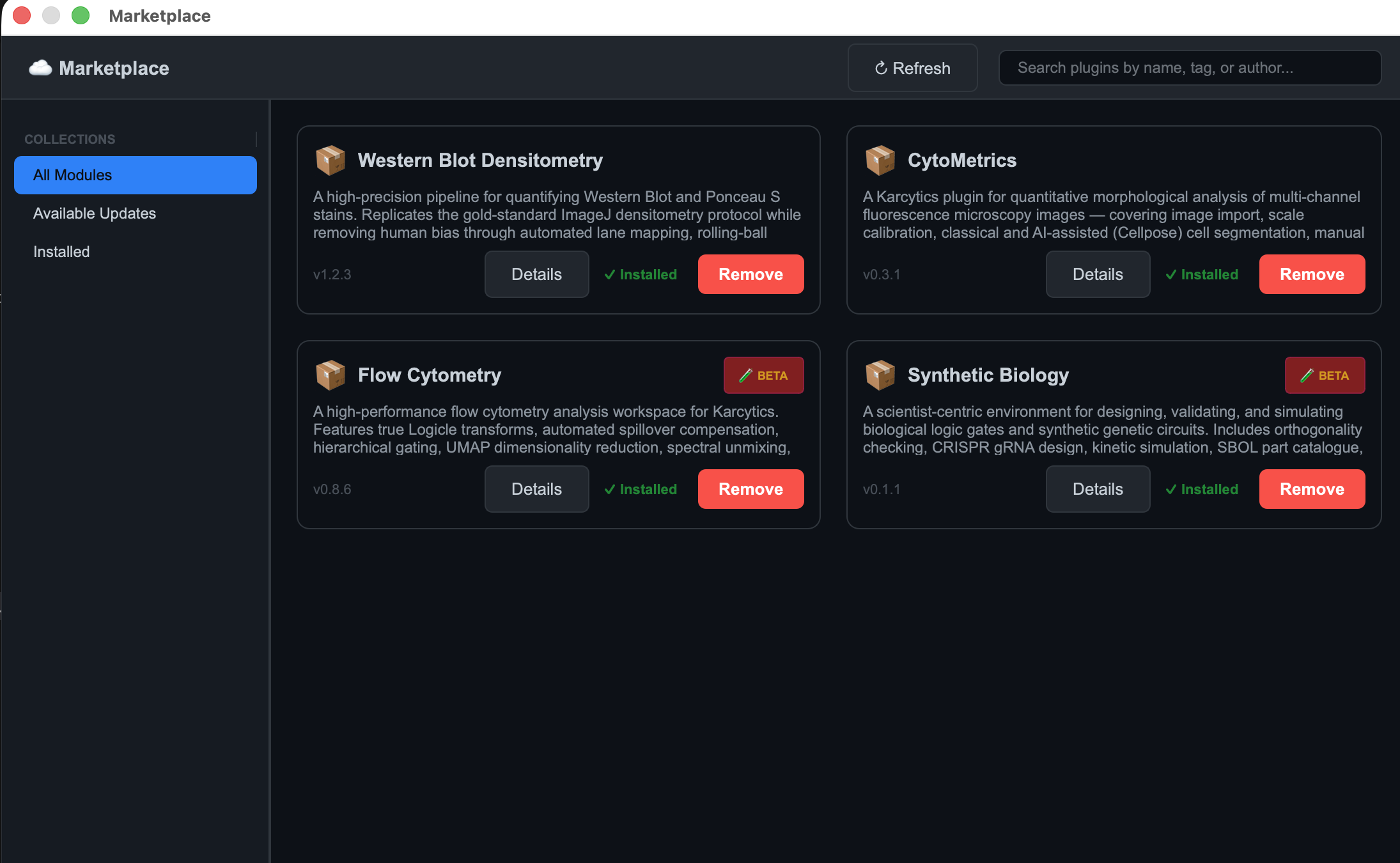
- All Modules — browse every plugin the registry knows about
- Available Updates — see modules with a newer version available
- Installed — review the plugins currently enabled on your machine
- Trusted Developers — see which publishers are already known and trusted
flowchart TD
    A[Open Marketplace] --> B[Browse or search modules]
    B --> C{Installed?}
    C -- No --> D[Install plugin]
    C -- Yes --> E[Open details / update]
    D --> F[Verify trust status]
    E --> G[Launch module when ready]
Installing and updating plugins
- Open the Marketplace from the Project Hub.
- Search for a module by name, author, or category.
- Open the module card to inspect version and publisher information.
- Click Install to download and enable the plugin.
- If an update is later published, reopen the Marketplace and choose Available Updates.
How installation works
Installed plugins are stored in ~/.karcytics/plugins.
- the remote registry provides metadata and package files,
- the Marketplace downloads and extracts the plugin,
- Karcytics records the selected version in a local install registry,
- the plugin becomes available from the project launcher or workspace.
[!TIP] If a plugin package contains a single top-level folder, Karcytics will flatten it so the module still loads correctly.
Security status explained
Every plugin receives a trust status when Karcytics discovers it.
- Verified Secure — the plugin is cryptographically valid and the publisher is trusted
- Untrusted — the plugin files are intact, but the developer is not yet trusted by a known authority or local approval
- Outdated — the plugin version is incompatible with the installed Karcytics core or depends on a newer release
If a plugin is blocked because it is untrusted, Karcytics shows a high-visibility warning before you can run it.
Trust and developer identity
Karcytics keeps known trust anchors in ~/.karcytics/trusted_roots.
When you inspect a plugin, you may see one of these trust paths:
- Verified Root Trust Chain — the developer key is validated through the official Karcytics trust chain
- Manually Approved Root (Local Override) — you approved the developer locally
- Unverified Self-Signed Identity — the plugin is present but no trusted path is available yet
Approving an untrusted developer
When Karcytics asks you to trust a developer, review the name, key, and source carefully. If you recognize it and trust the publisher:
- click Trust this Developer;
- Karcytics saves the developer key locally;
- that developer’s plugins can load normally in future sessions.
If you do not recognize the source or do not want to trust it, do not load the plugin.
[!IMPORTANT] Only approve a developer if you trust the publisher and are comfortable with the module running code on your machine.
Plugin details and diagnostics
Each plugin card includes details such as:
- publisher name and version
- minimum required Karcytics version
- verification badge
- trust path and developer identity
The Marketplace also has a Diagnose & Repair action.
- Use Repair to rebuild plugin state when files are missing or a trust check fails.
- Use Repair All Plugins if a broader reset is needed across installed modules.
Keeping plugins up to date
Karcytics periodically syncs plugin metadata from the remote registry. The Marketplace uses that metadata to show updates or changes in publisher trust.
If a plugin stops loading after an update:
- check the plugin details and trust state,
- verify the developer identity,
- reinstall the plugin if necessary,
- re-approve the developer if the trust chain changed.
When things go wrong
- If a plugin fails to install, confirm your internet connection and retry.
- If a plugin is blocked as untrusted, verify the source or remove it if you do not trust it.
- If a plugin reports missing dependencies, use the plugin repair action or reinstall it.
[!NOTE] The Plugin Store is not a generic file browser. It manages verified Karcytics modules that follow the app’s dynamic plugin model.
Next steps
- Installation — install the app and prepare your system
- Getting Started — create or open a project
- FAQ & Troubleshooting — solve plugin or startup issues quickly